Repository overview
The Repository is the structured list of architecture objects in your workspace. It is the best place to create, review, filter, edit, and reuse entities and relations.
Use the Repository when you want to:
- Build an application inventory.
- Clean up names, metadata, and ownership.
- Find duplicate or incomplete records.
- Save filtered views for repeat use.
- Open details for a specific entity.
- Create a diagram from a selected set of repository items.
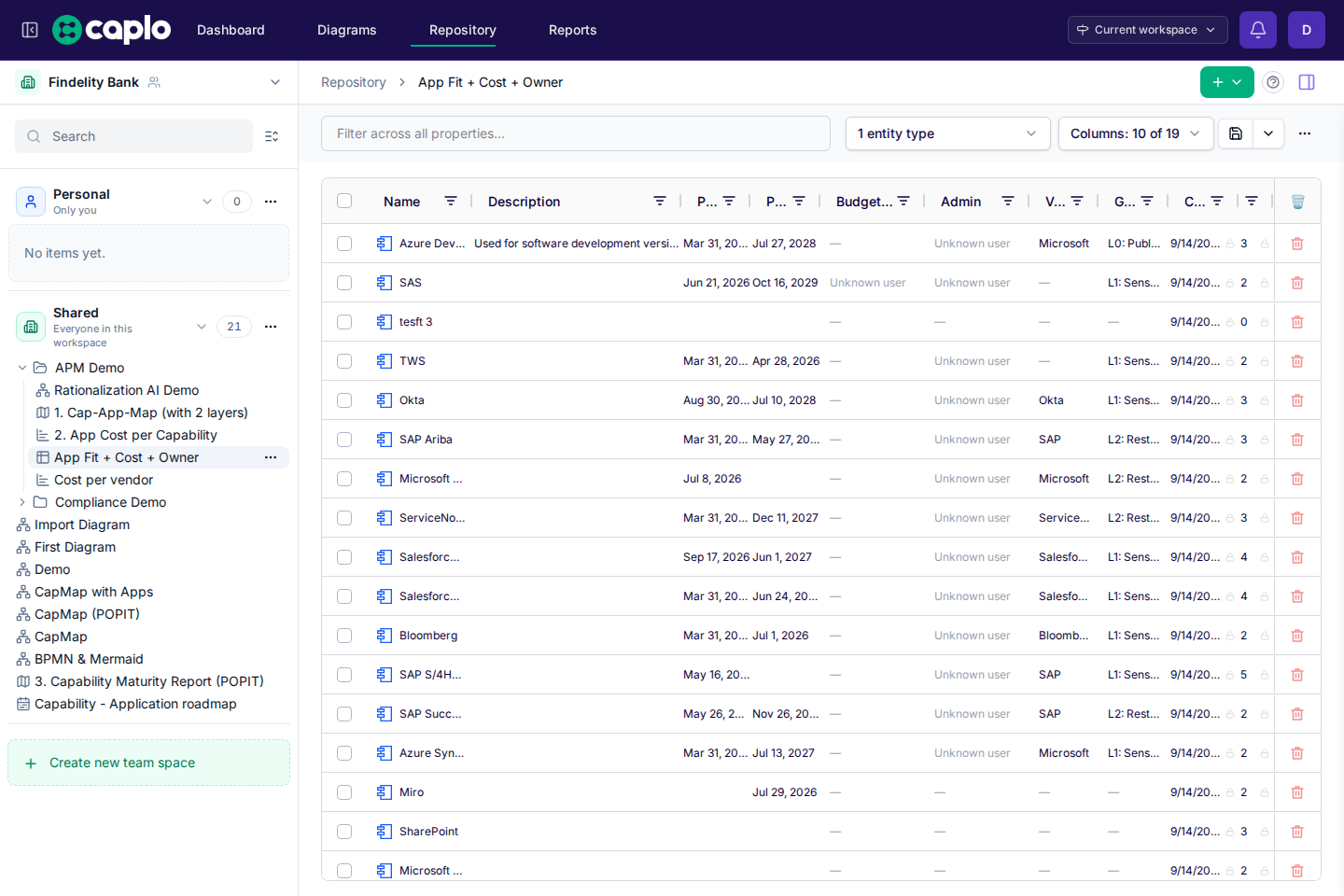
Grid view
The Repository grid shows entities with type-aware columns. Different entity types can have different properties, so the visible columns may change when you switch type filters.
You can filter, sort, resize, and edit grid data to keep a focused working view. When you need the current results outside Caplo, you can export the visible grid as a CSV file.
Phase in and Phase out filter with the same day / period picker used to set the field. You can filter by an exact day or by a year, quarter, or month. A quarter still matches a filter such as After 15 Jan when any day in that quarter is after 15 Jan. After Q1 matches values that extend past the end of that quarter. Click a Phase in or Phase out cell to set an exact day or a calendar period. Empty phase-in means already active; empty phase-out means no planned retirement.
Export the current view as CSV
- Set up the Repository grid the way you want it. You can change entity types, show or hide columns, add filters, and sort the rows.
- Open the Repository actions menu in the toolbar.
- Select Export current view to CSV.
The export uses the current grid state. That means the CSV includes:
- The columns that are currently visible.
- The rows that match the current filters.
- The current sort order.
Caplo exports readable values where possible. For example, user properties are exported as email addresses and entity references are exported as entity names instead of internal IDs.
Creating entities
Create an entity when the object should be reused in diagrams or reports. Choose the right type first, then add the name and relevant properties.

Caplo blocks duplicate entities with the same name and entity type in the same workspace. If an entity already exists, reuse it instead of creating another record with a slightly different spelling or abbreviation. If a matching entity was previously removed from the Repository, Caplo can restore that existing item instead of creating a duplicate. If a matching entity exists but is still unapproved, Caplo can approve that existing item instead of creating a duplicate.
For more on enabled element types and properties, see Meta model.
Creating relations
Use the Repository create menu when you want to define a relation deliberately instead of inferring it from a diagram.
Caplo blocks exact duplicate relations. Some relation types, such as Parent-child and Realizes, are intentionally limited to one reusable relation per entity pair. If a matching relation was previously removed, Caplo can restore that existing relation.
Editing entities
You can edit many properties directly from the grid. Some system properties and read-only properties cannot be edited. If a property does not apply to the selected entity type, Caplo keeps it out of the editing flow.
For more context, select an entity to open the right panel or open the full entity detail page.
Removing repository items
You can remove entities and relations from the Repository even when they are still used in diagrams. Removed items disappear from active Repository lists, but existing diagrams keep their shapes and arrows visible with a warning state.
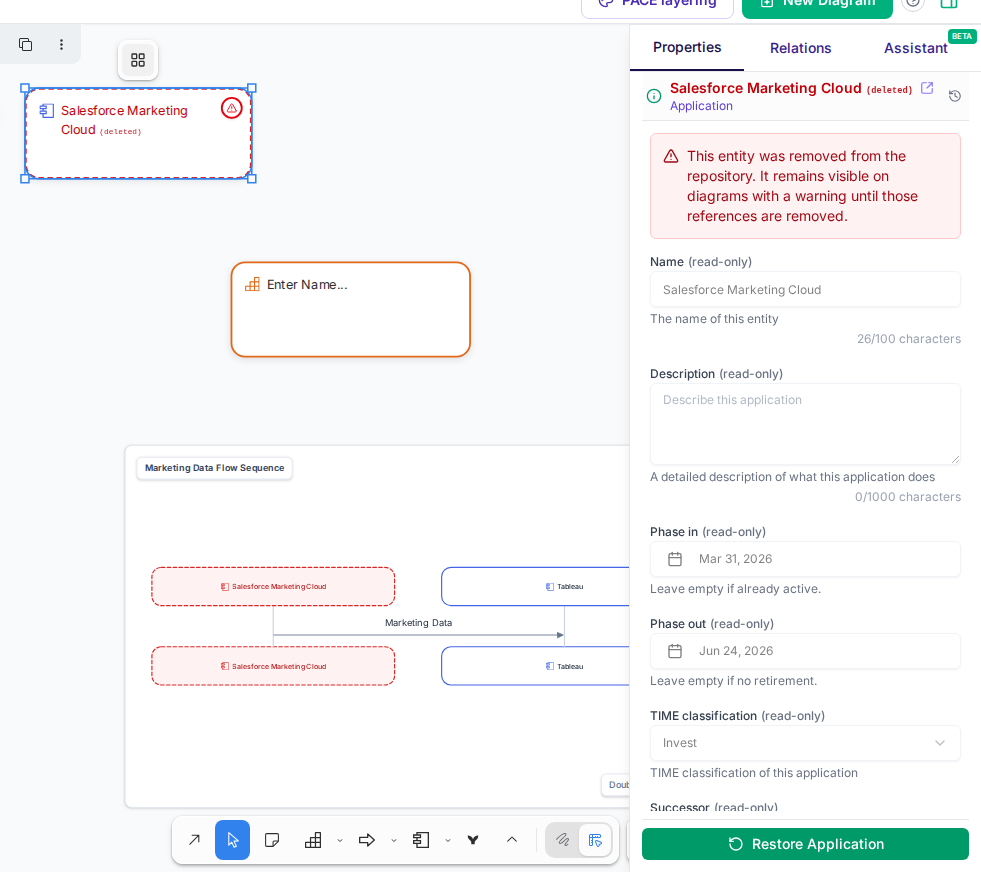
This lets you clean up the Repository first and update diagrams later. Once a removed item is no longer used by any diagram, Caplo can clean it up permanently. If you create the same entity or relation again before cleanup, Caplo restores the removed item.
Entity details
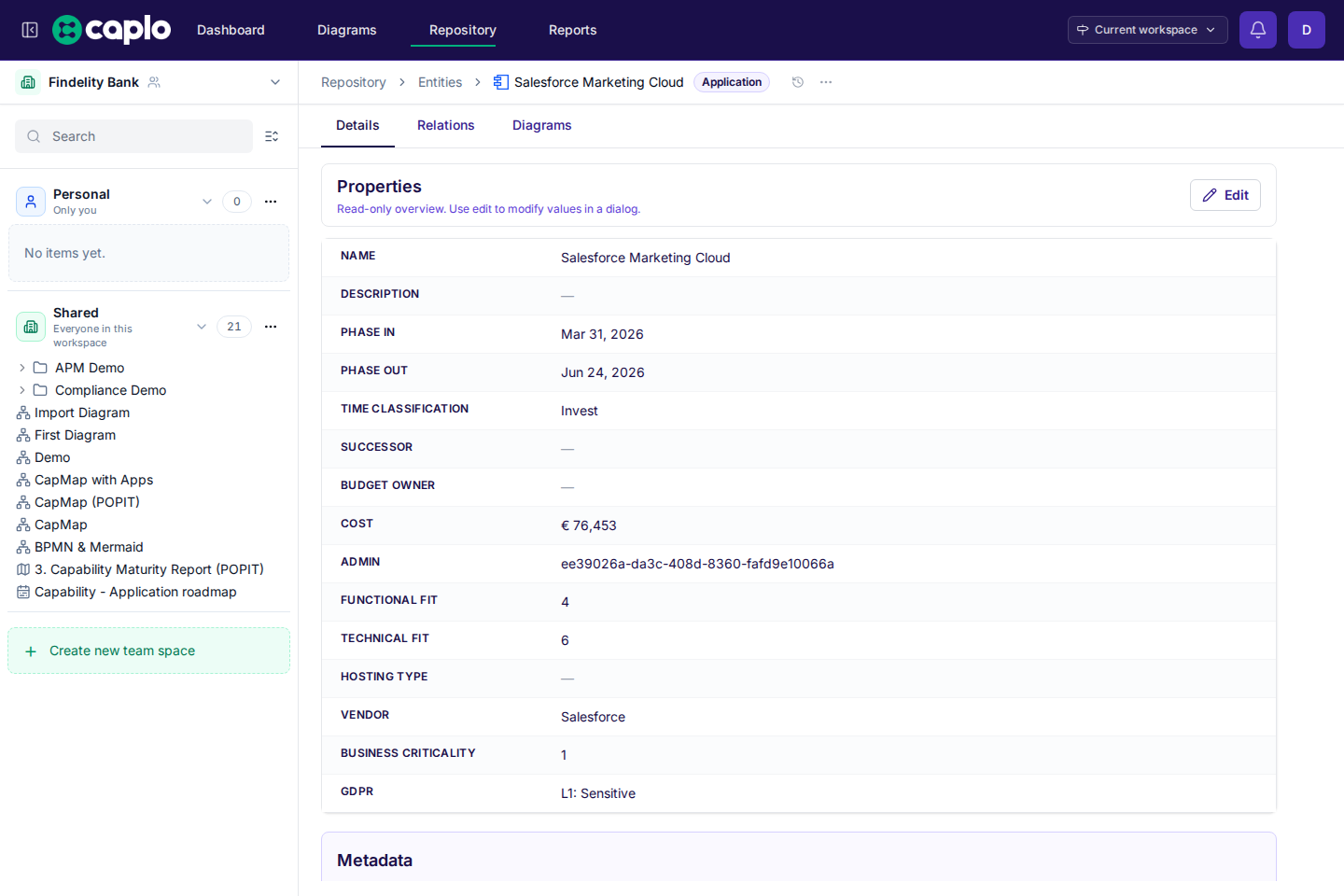
Entity detail pages show:
- Details for the entity's properties.
- Relations for connected entities.
- Diagrams where the entity appears.
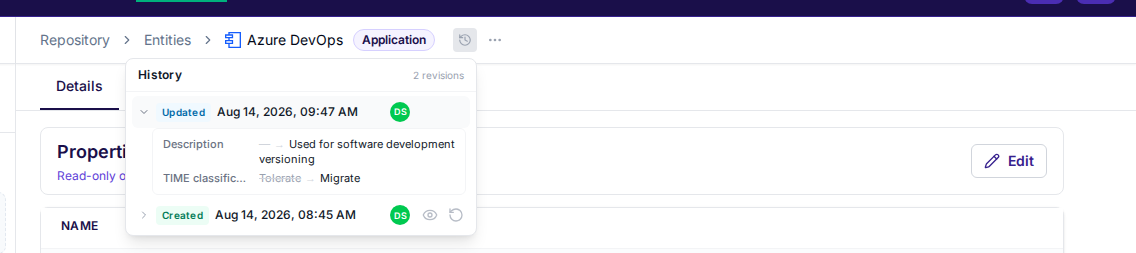
Open History after the breadcrumbs to browse past versions. Expand a row to see what changed. View is a read-only preview. Restore writes that version onto the live entity, or onto the draft you are working in. The ... menu after History deletes the entity from the repository; it stays on diagrams with a warning until those references are removed. See History and snapshots.
In practice, the easiest path is:
- Select an entity in the Repository grid.
- Use the right panel to inspect it.
- Click the open-detail icon beside the entity name when you want the full detail page.
Use this when you need to understand the role of one application, capability, process, or data object across the workspace.
Relation details
Relation detail pages show:
- Details for the relation's type, endpoints, and properties. Deleted From or To entities are labeled as deleted.
- Diagrams where the relation appears as an arrow.
Open History after the breadcrumbs to browse past versions. Expand a row to see what changed. View is a read-only preview. Restore writes that version onto the live relation, or onto the draft you are working in. The ... menu after History deletes the relation from the repository; it stays on diagrams with a warning until those references are removed. See History and snapshots.
From the right panel, use the open-detail icon beside the relation name. From an entity detail Relations tab, use Properties in a relation row menu. You can also open a relation from Latest actions on the Dashboard.
In practice, the easiest path is:
- Select a relation in the right panel (from a diagram arrow or a relation row).
- Use the right panel to inspect it.
- Click the open-detail icon beside the relation name when you want the full detail page.
Creating diagrams from repository data
When you have filtered the Repository to a useful set of rows, you can turn that visible set into a graph-style view and promote it into a diagram. This is useful for quickly starting an application landscape or dependency view from existing data.
Good repository habits
- Use clear, consistent names.
- Prefer full names over local abbreviations. If an abbreviation matters, explain it in the description or properties.
- Add only properties that support a decision or report.
- Reuse existing entities whenever possible.
- Prefer relations over long text when you need analysis later.
- Save repeatable views instead of rebuilding the same filters.
Keyboard shortcuts
Useful Repository shortcuts:
- Undo:
Ctrl+Zon Windows/Linux orCmd+Zon macOS. - Redo:
Ctrl+Shift+Zon Windows/Linux orCmd+Shift+Zon macOS. - Multi-select entity types: open the entity-type filter and use the checkboxes to select one or more types.
Write names and descriptions that a new teammate or the AI assistant can understand without tribal knowledge.