Entity documents
Every entity can have one written page. It is the first thing you see when you open the entity.
Properties, including the ones you add for your workspace, hold structured facts. Relations hold connections to other entities. The document is the prose around that model: background, context, and any longer writing that does not belong in a field or on an arrow.
A Process keeps its BPMN diagram as its own tab. The document does not replace that flow.
What to write
Write the page the way you would brief a colleague. Paragraphs, headings, and the occasional table of narrative detail belong here. A fact you want to filter, sort, color on a report, or draw as a connection belongs on Details or Relations. When the workspace needs that fact and no property exists yet, add one in the meta model.
The page is a good place for:
- Background a new reader needs before the fields make sense
- The story behind a name, a scope, or a past decision
- Notes from a workshop or a review, written so someone who was not there can follow them
- Caveats, open questions, and links to material that lives outside Caplo
Copying scores, costs, classifications, or the list of related entities into the page makes a second copy that goes stale. Readers already see those on Details and Relations.
The page is created on the first save. Opening the entity, or placing it on a diagram, does not create an empty document.
Edit the page
Open an entity from the Repository. The Document tab is selected. Details, Relations, Diagrams, and a Process BPMN tab stay next to it.
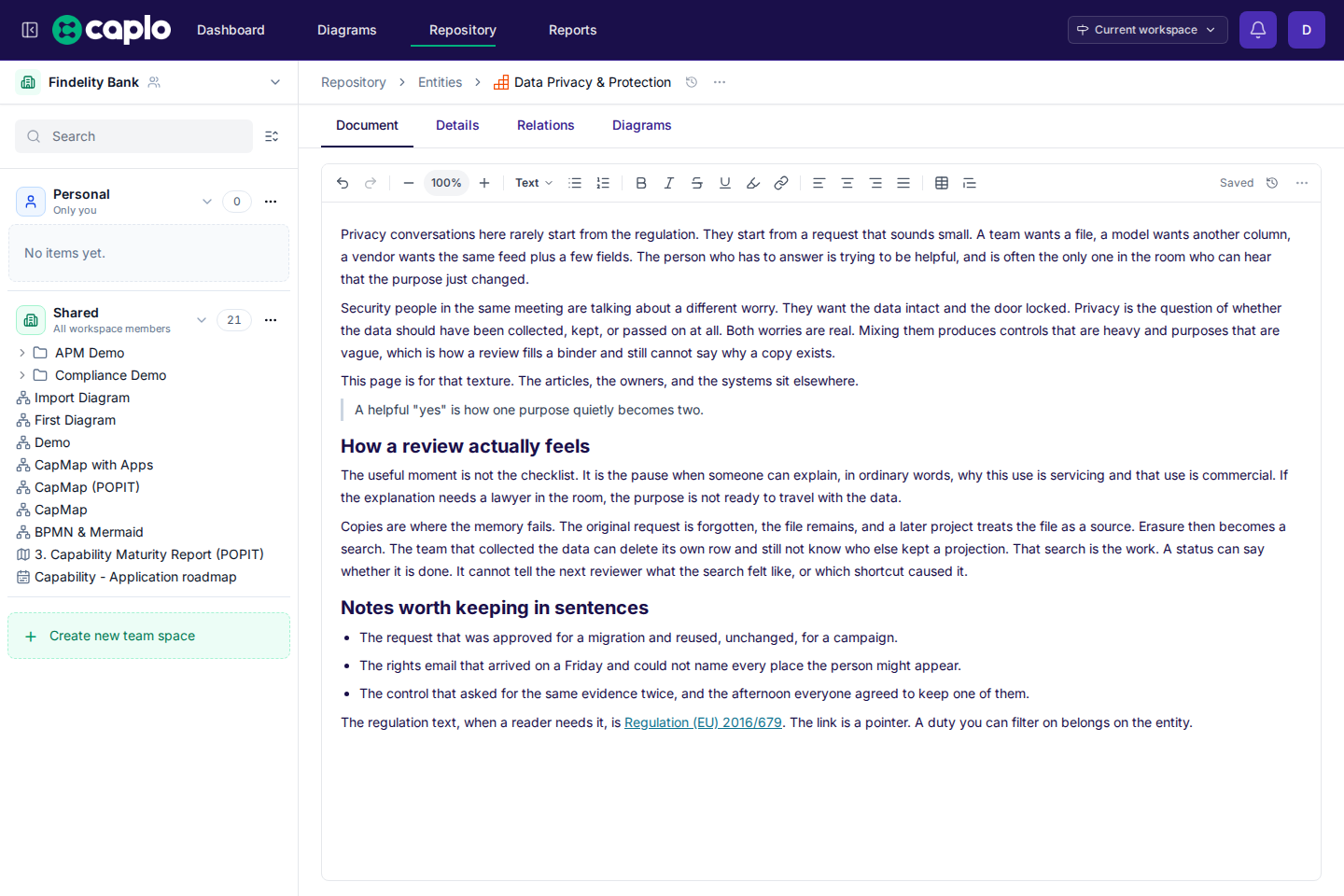
The editor is rich text:
- Headings, body text, and quotes
- Bulleted and numbered lists
- Bold, italic, underline, strikethrough, and highlight
- Links
- Left, center, right, and justified text
- Tables. Drag a column border to resize it
Edits save about every 2 minutes while you are writing, and also when you close the editor, hide the tab, or leave the page.
If a sentence would make a good column, filter, or arrow, put it on the entity. The document stays readable because it is not a second property sheet.
Show it on a diagram
Any linked shape can switch to a document card from the contextual toolbar. The card shows the entity icon and name, and the page clipped to the shape, with its headings and text styles. The border color follows the shape style.
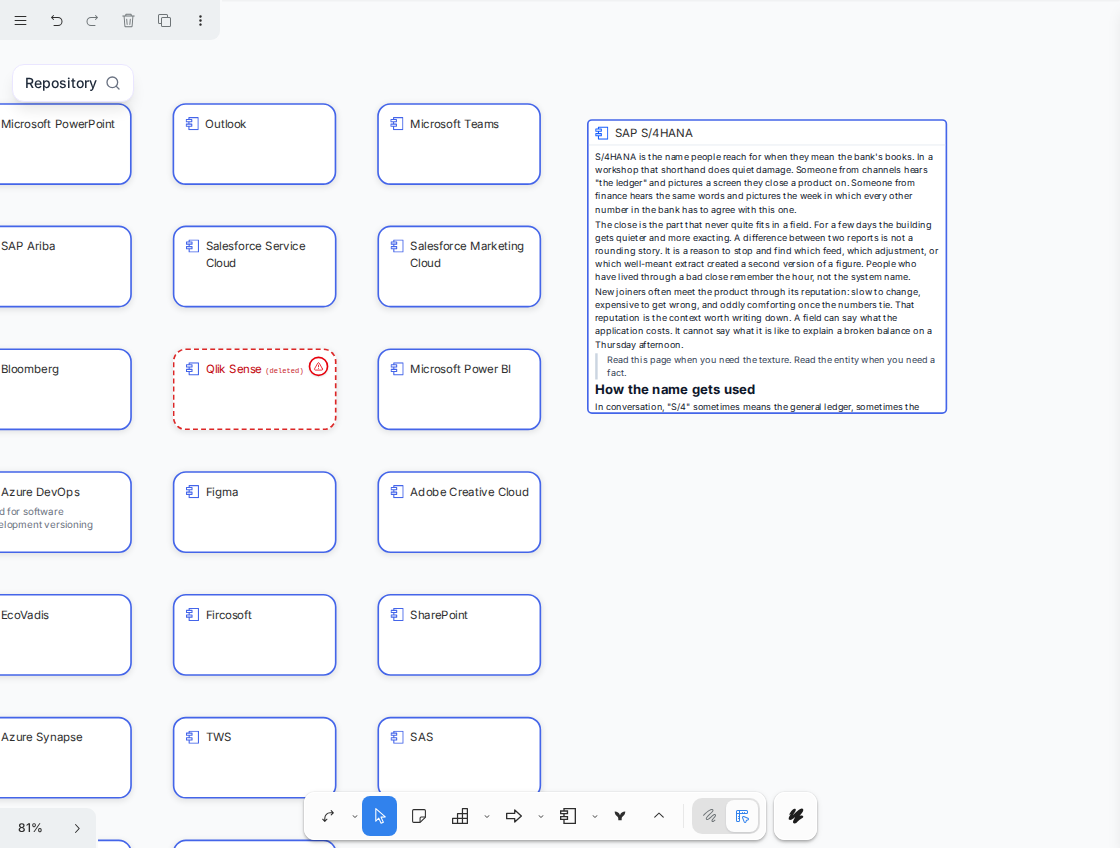
Double-click the card to edit the same page. After a save, the card updates without reloading the diagram. Switch the shape back to its architecture form, or to BPMN for a Process, from the same toolbar. A shape that contains other shapes cannot switch until those children are moved out.
See Modeling in diagrams.
Change it in a draft
Edit the page inside a draft when the wording should be reviewed before everyone sees it. The live page stays as it is until you publish.
On the draft Changes tab, the document keeps its headings, lists, and tables. Added and removed blocks are marked. Publish writes that page onto the live entity together with the rest of the draft.
Look back
History on the document editor lists earlier versions of the page. View is a read-only preview. Restore writes that version back, as a new entry, and keeps the older ones.
While a draft is open, History includes the live versions and the versions on that draft. Restore writes the draft, not the live workspace. See History and snapshots.
Edit it from another tool
You can read and replace the page as Markdown from an AI client or a script.
- MCP connections:
get_document,persist_document, anddelete_document, addressed by the entity type and name. Writes go into a draft. - Public REST API:
GET,PUT, andDELETE/entities/{id}/document. A live write can target main. A draft write sends the draft id.
Markdown keeps headings, lists, links, highlight (==text==), and underline (++text++). Text alignment and table column widths stay in the Caplo editor. They are not part of the Markdown you send or receive.
Remove it
On the document, open the actions menu next to History and choose Delete document. That removes the page and keeps the entity. The Document tab is empty until the next save. A document card on a diagram drops the page text.
History still lists earlier versions. Restore writes one of those versions back.
Deleting the document inside a draft hides the page until you publish. The live page stays as it is until then.
Removing the entity hides it from the Repository and leaves the last page readable on the entity page, on a document card, and through the API. A workspace snapshot taken after that removal still shows that page. Restoring that entity brings that page back. A page you deleted on its own stays deleted.
Who can change it
Access follows the entity type. If you can view that kind of entity, you can read its document. The first save uses the permission to create that type, as does a save after the page was deleted. Editing a page that is still there uses the permission to update it. Removing the page uses the permission to delete it. Publishing a document change from a draft uses the permission to publish that type.
By default, every workspace member can do all of those. A workspace admin changes that under Settings > Access control. See Members and access.