Members and roles
Caplo uses workspace-scoped roles. Use Settings > Workspace members to see who has access to the current workspace, invite new people by email, and manage roles if you are an admin.
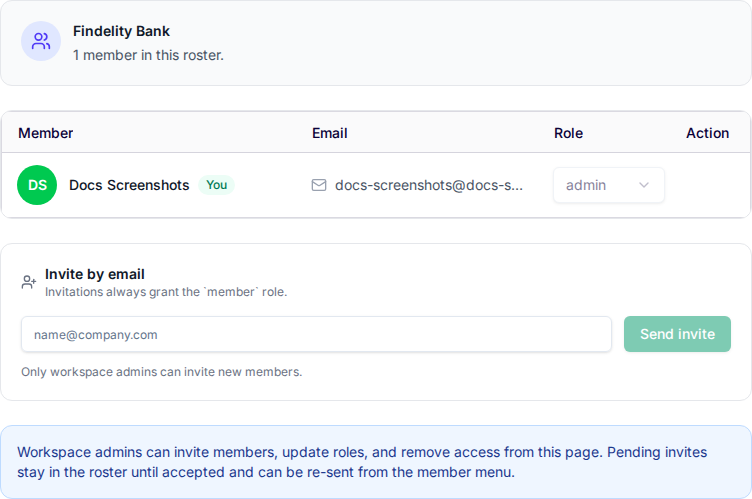
Roles are per workspace
If a settings section, shared action, or admin control is missing, first verify the active workspace. The same user can be an admin in one workspace and a member in another.
Invite people to a workspace
Open Settings > Workspace members and enter the person’s email address in Invite by email.
- Only workspace admins can send invites.
- Invitations are sent by email.
- New invitations always grant the
memberrole first. - After the invitation, an admin can promote them to
adminif needed.
Pending invites stay visible in the workspace roster until the person accepts. Admins can re-send an unfinished invite from the member row menu.
Current roles
- Admin can invite members, change roles, remove access, and manage workspace-owned settings such as company profile, custom properties, and diagram element visibility. Admins can also create and update shared repository data, diagrams, reports, and saved views, and can delete any shared diagrams, reports, and saved views in the active workspace.
- Member can work with repository data, diagrams, reports, and saved views, but has more limited control over workspace-wide administration. Members can read workspace settings and member lists, but they do not manage roles, memberships, or shared metamodel settings such as property definitions.
Manage access
Use Settings > Workspace members to:
- Review everyone who belongs to the active workspace
- See each person’s current role
- Change a member’s role if you are an admin
- Remove workspace access if you are an admin
Notes
- Roles are scoped to a workspace, not to your whole account.
- If you belong to multiple workspaces, your role can differ between them.
- Shared diagrams, reports, and saved views are collaborative, but personal/private items remain owner-only.
- Member management may be handled outside the app depending on your organization’s setup.
- Workspace-wide settings are typically admin-managed.