Pages
Pages are Lovable for enterprise architecture and the business. Anyone can create any view or animation on top of the repository. Describe a chart, a briefing, a board, or a sequence that plays as you scroll, and an AI client builds it. The layout, the motion, and the interaction are yours.
Caplo keeps the repository underneath, so the page stays tied to the entities and relations people can already see. A leadership story, a live portfolio picture, a walk through the landscape, a filter that redraws the picture: if it can be drawn from the repository, it can be a page.
When someone opens the page, it reads those entities and relations, so the figures follow the live workspace, the open draft, or the snapshot they are viewing. The design stays on the page. The numbers come from the repository.
Pages is its own item in the top menu. The written page on an entity is separate: that one is prose stored on the entity. See Entity documents.
Turn Pages on
Pages stays hidden until a workspace admin turns it on.
- Open Settings > Feature flags.
- Check Pages.
- Click Save Feature Flags.
Pages then appears in the top menu for everyone in the workspace. A page link still opens, and pages still appear in Overview, while the menu item is hidden.
Open a page
Click Pages. Each card shows the name, a short description when the page has one, Personal or Shared, the folder (or No folder), and the date it was last updated. The newest update is first. Click a card. The header reads Pages › {name}. History, the actions menu, and Full screen sit beside the breadcrumb.
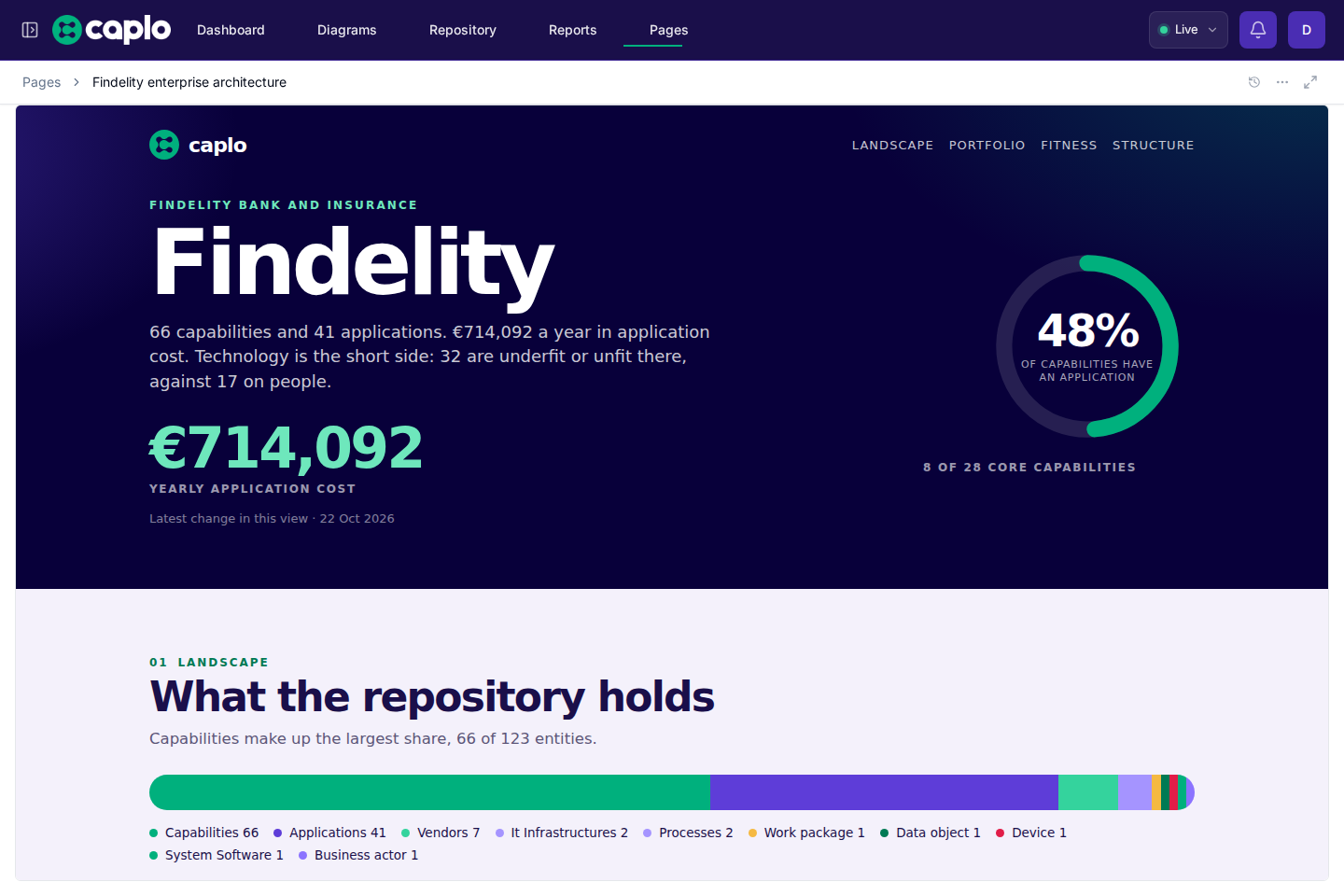
The page in this screenshot is one example. Its header jumps between four sections:
- Landscape — what the repository holds
- Portfolio — where the money and the debt sit
- Fitness — how the capabilities are carrying
- Structure — the capability families, and the holes
Ask for another layout, another interaction, or another animation, and publish that as its own page.
While a draft is open, a card marks a page that draft added, updated, deleted, or restored.
Present a page
Full screen hides the Caplo header and sidebar so the page fills the window. Leave that view from the control in the corner, or press Escape.
Organize pages
Pages appear in Overview under Personal or Shared, including inside folders. Open a page from there the same way you open a diagram or a saved report.
Drag a page to move it. It can only sit in a folder from the same area. Only the person who created it can move it between Personal and Shared.
Hover a page and open ... for:
- Rename — change the name in place
- Details — the description, who created the page and when, and who last updated it and when
- Delete
The figures follow what you can already see
The page reads the same repository you see everywhere else:
- the live workspace
- the draft you have open
- a workspace snapshot you are viewing
Opening an earlier revision of the page still reads that current repository scope. The layout and the words are the saved revision. The rows are what the rest of Caplo is showing.
You see the entities and relations you are allowed to open in the Repository. The page can filter, chart, animate, and react to those rows. It cannot add, change, or remove repository data.
Review a page before everyone sees it
A new page, or a change to one, is published into an open draft. It stays off the live workspace until someone with Publish for pages publishes that draft. See Drafts and Members and access.
On the draft Changes tab, the page opens in the same frame as on Pages. A new page shows the draft. A deleted page shows the live version. When the page itself changed, the previous version and the draft version sit side by side. The figures still come from the repository scope you have open.
Earlier versions
History on an open page lists earlier revisions. View shows that revision in the same frame and leaves the live page as it is. Restore writes that revision back onto the live page, or onto the draft you are working in, and keeps the older revisions. View and Restore stay hidden while you are viewing a workspace snapshot.
History and snapshots covers the same View and Restore pattern on other items.
Remove a page
Delete is in the menu on each card, in the menu next to History on an open page, and in Overview. The confirmation quotes the page name. The card leaves the list. The link still opens the last version, marked Deleted, and Restore puts it back.
The card menu and the menu on an open page stay hidden while you are viewing a workspace snapshot. On an open page, Delete also stays hidden while you preview an older revision or look at a page that is already deleted. Overview still lists Delete during a snapshot. Confirming it leaves the page in place, and Overview reports that the workspace is read-only.
Who can do what
Open Settings > Access control. Pages is its own row, with create, read, update, delete, and publish. Create, update, or delete also grants read. Create, update, and delete together also grant publish. See Members and access.
Ask an agent to publish a page
Caplo does not include an editor for the page itself. You publish one from an AI client connected to Caplo, such as Cursor or Claude.
- Connect the client. See MCP connections.
- Open a draft, or ask the client to create one.
- Describe the view. A chart, a narrative, a board, or an animation are all in scope. The client writes one HTML file, up to 5 MB, and publishes it into that draft.
- Open the link it returns. The link includes the draft, so you are looking at the draft copy.
- Publish the draft in Caplo when the page is ready for the workspace.
Until the first page is published, Pages says there are no pages yet. The note under that heading says to publish one from an AI client into an open draft. The page appears in this list after that draft is published.
A page created in a personal draft is personal. A page created in a shared draft is shared. Ask for the other choice when you want it. A personal page cannot be saved in a shared draft, and a page has to match the privacy of its folder.
Tell the client to keep styles, scripts, images, and fonts inside the file. The page cannot load another website. Images and fonts use data: URLs, or the page uses system fonts. Leave repository numbers out of the file. The page reads them when it opens.
What the page can read
A page can read entities, relations, and their properties. It reads the same rows you can already open in the Repository.
MCP tools
Publishing or deleting a page requires an open draft. Those writes stay off the live workspace until someone with Publish for pages publishes the draft in Caplo.
list_pages— names and links, without the HTMLget_page— metadata plus a one-hour download link for the HTML, so the agent can save and revise the filecreate_page_upload— a one-hour link to POST the local HTML filepublish_page— create or replace the page in a draft from that upload tokendelete_page— mark it deleted in a draftexport_page_preview— a JavaScript file that installscaplofor a local preview
Each tool returns a link to /pages/{id}. While the call is draft-scoped, the link includes ?draft={draftId}. Older /reports/pages/{id} links still open the same page.