Navigation and organization
Caplo separates top-level navigation from content organization.
Use the top navigation to move between Dashboard, Diagrams, Repository, Reports, and Settings. After sign-in you land on Dashboard. Open Diagrams (or /diagrams) to enter the diagram editor. Use the Overview panel to find, create, organize, and reopen your saved work.
Overview
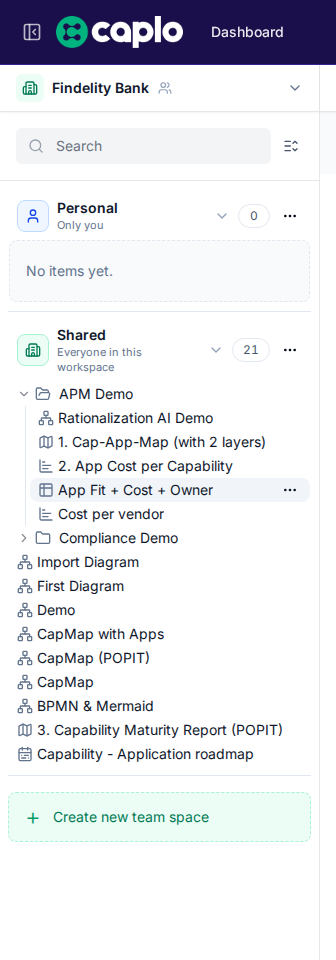
The Overview panel contains the items you return to often:
- Diagrams
- Saved repository views
- Saved custom reports
- Folders
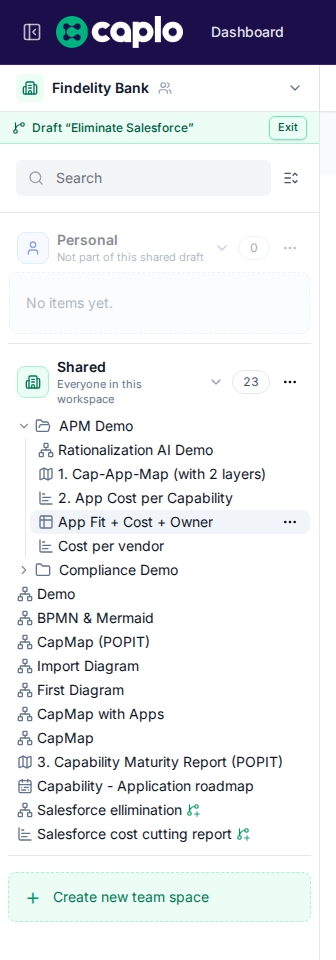
Overview starts pinned on the left. Hover the sidebar button to preview it over the current page when it is unpinned. Click the button or the Caplo logo to pin or unpin it. Unpinning gives the current page the full width again. The Overview is available across the product, so you can open it from Repository, Reports, Settings, or a diagram without losing the mental map of your workspace. While a draft is active, Overview shows a Draft strip with that draft’s name so you know the tree is that scenario, not the live workspace.
Open and close panels
Caplo uses collapsible panels so you can focus on the current task:
- Overview is pinned by default. Hover the Overview button in the global header to preview it when unpinned, or click to pin or unpin it. Unpinning gives the current page the full width again.
- Expand or collapse the Personal and Shared sections in the Overview.
- Expand or collapse folders in the Overview tree.
- On writable diagram pages, click the Repository chip on the left of the canvas to search and drag entities. Use the page-header button to show or hide the right properties panel.
Personal and Shared
Overview items live under Personal or Shared.
- Personal is for private working views.
- Shared is for content the workspace can use.
Folders stay within their Personal or Shared area. Individual diagrams, saved views, and reports can be moved when you are ready to share them.
Folders and sorting
Use folders when a workspace has many diagrams, reports, or repository views. Keep folder names audience-oriented, such as “Application portfolio,” “Finance domain,” or “Migration planning.”
You can sort Overview items alphabetically or by last updated date. Directories stay grouped before individual items so the tree remains easy to scan. Hover a diagram, saved view, or report to see when it was last updated and who created it; names stay fully visible until that hover metadata needs the space.
Use the ... menu on a diagram, saved repository view, or saved report to open Details. That card shows the name, description, who created it, when it was created, who last updated it, and when it was last updated.
Page headers and breadcrumbs
Each main page has its own header with local context and actions. Breadcrumbs describe where you are in the current route, not necessarily where the item lives in the Overview folder tree. While a draft is active, a Draft chip with that draft’s name sits after the trail — for example Reports › Application Landscape then Draft “Q2 planning” — so you know the page is that scenario, not the live workspace.

For example, a saved repository view may appear inside a folder in Overview, while the Repository page header focuses on the active view and available actions.
Use breadcrumbs to understand the current page or saved item you opened. Use the Overview tree to understand folder organization and where content lives for your team.
Switching workspaces
If you belong to multiple workspaces, use the workspace switcher in the Overview header. After switching, Caplo reloads the workspace-specific repository, diagrams, reports, and settings. If you were viewing a draft or a snapshot, you return to the current live workspace.