Members and access
Use Settings > Workspace members to see who belongs to the current workspace, invite people by email, and choose Workspace admin or Member for each person.
Workspace admins also get Settings > Access control. That is where you decide who can view and change the published repository, and who can publish a draft onto it. Those settings do not limit who can work in a draft.
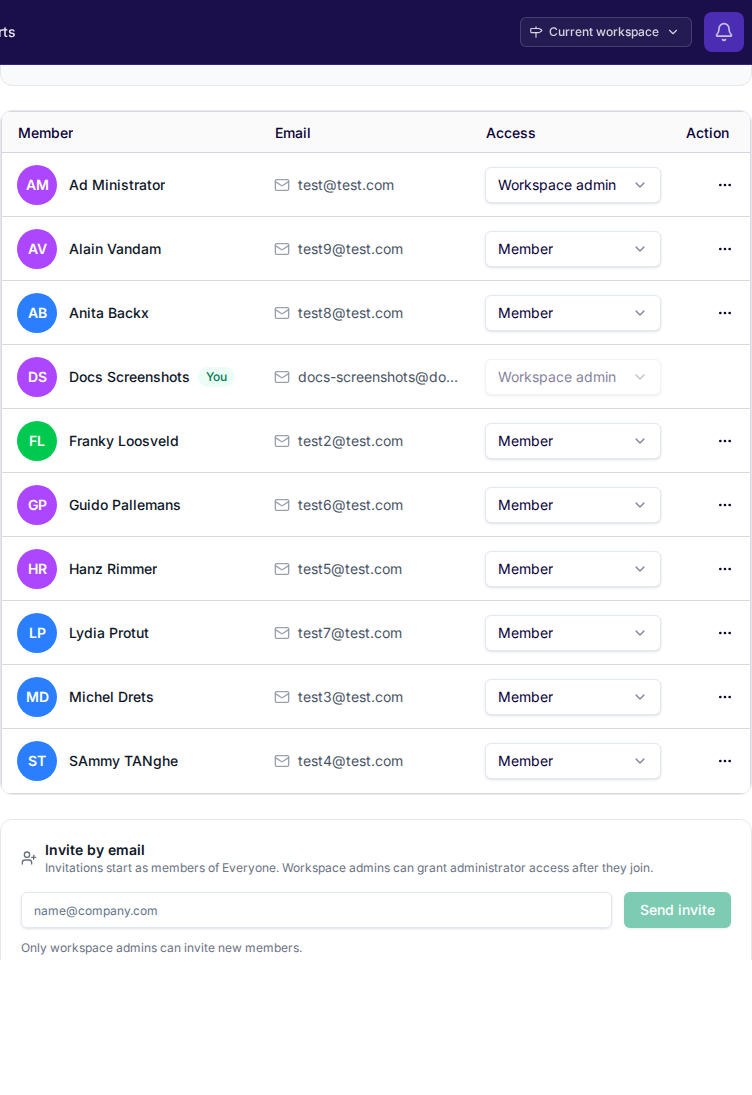
If a settings section or admin control is missing, check the active workspace. The same person can be a workspace admin in one workspace and a member in another.
Invite someone
Open Settings > Workspace members and enter the person’s email address in Invite by email.
- Only a workspace admin can send invites.
- Caplo sends the invitation by email.
- The person joins as a Member and can do whatever the Everyone team can do on the live repository.
- After they join, an admin can make them a Workspace admin.
A pending invite stays in the roster until the person accepts. An admin can re-send an unfinished invite from that person’s row menu.
Workspace admin and member
- Workspace admin can invite people, remove access, and choose who else is an admin. Admins also manage workspace settings such as the company profile, plus Entity metamodel and Relation metamodel (which types are available, and their properties). An admin can always open and repair the live repository, even when a team would hide an item from other people.
- Member is the usual role. What a member can do on the live repository comes from the teams they belong to.
Choose who can change the live repository
Open Settings > Access control. These settings apply to the published repository. They do not stop someone from creating a draft or editing inside one.
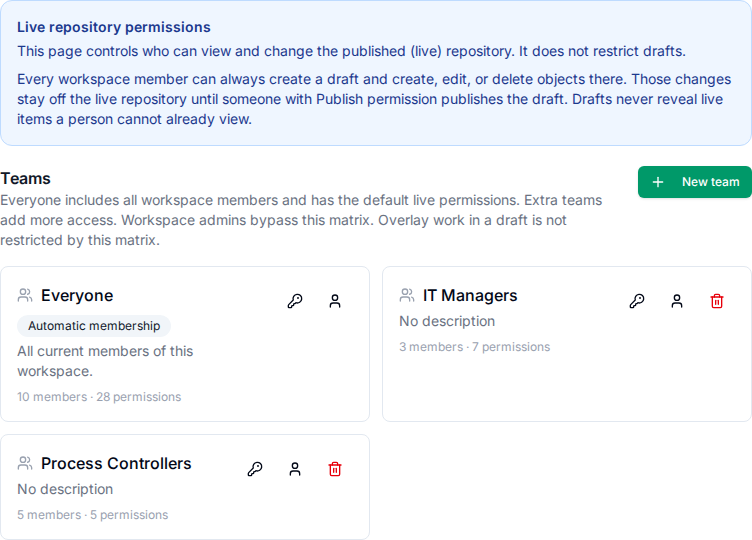
Everyone includes every current member of the workspace. By default that team can create, read, update, delete, and publish on the live repository.
- Create — add a new item of that kind. Also grants Read.
- Read — open it
- Update — change it. Also grants Read.
- Delete — remove it. Also grants Read.
- Publish — apply a draft’s changes of that kind onto the live repository. Granted automatically when create, update, and delete are all allowed.
Checking All entity types checks and locks that same action for every entity type below. A type stays checked after you clear All entity types only when that type has its own grant.
Add another team when a group should be able to do more than Everyone. A person who belongs to more than one team can do everything those teams allow. Workspace admins are not limited by these checkboxes.
Open the key icon on a team to edit its checkboxes.
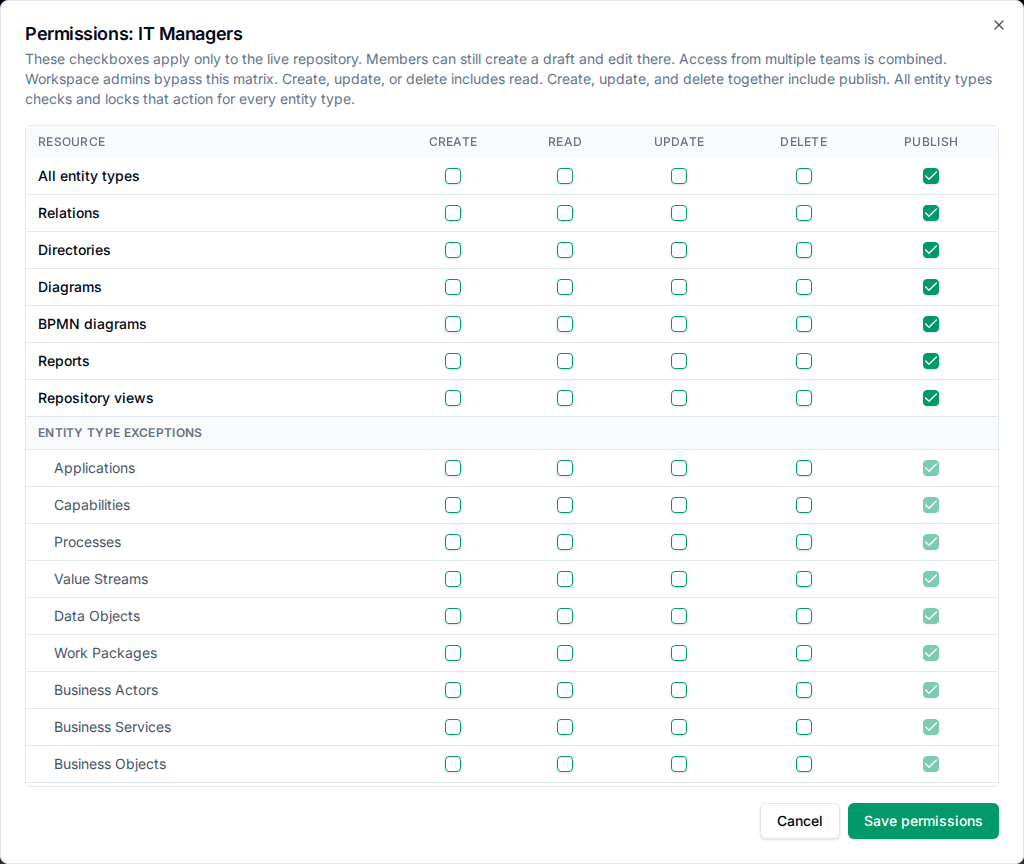
The first rows cover whole categories, such as all entity types, relations, diagrams, and reports. Further down you can set the same checkboxes for one entity type, such as Applications or Processes. Process Controllers is an example of a team whose access applies to Processes.
Change something without live edit rights
Every workspace member can create a draft and create, edit, or delete items there, even when they cannot do that on the live repository.
- Those changes stay off the live repository until someone with Publish for each kind of change publishes the draft.
- Owning the draft, or having Write on it, does not let you publish it.
- A draft never shows live items the person cannot already open. Write on a draft does not change that.
See Drafts for how to create, review, and publish a draft.
Share a draft
Open a draft and choose Manage access. If you can see the draft but cannot change who has access, the button says View access. The same dialog opens from the members icon on the drafts list.
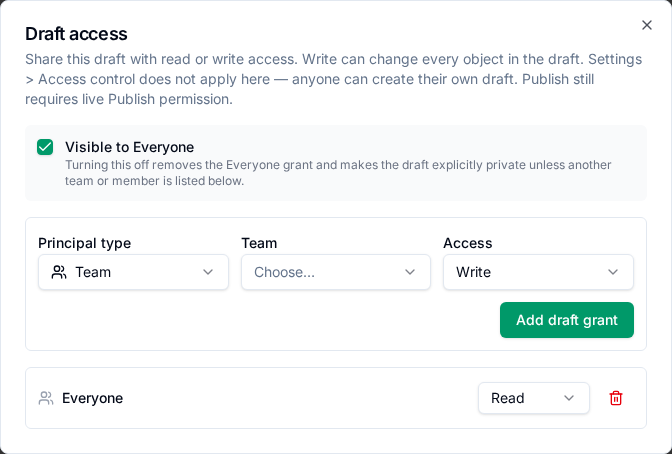
- Visible to Everyone lets the whole workspace view the draft. Turn it off to keep the draft private except for the people and teams you add.
- Add a team or a person with Read or Write. Write lets them change everything in that draft.
- Publishing still needs Publish on the live team checkboxes under Settings > Access control.
What someone sees with limited access
A list can show that a diagram, BPMN model, report, or saved view exists. Opening a diagram or BPMN model stops if it depends on an entity or relation the person cannot see.
Reports and saved views still open. They show only the repository data that person can access, with a notice that the page may be incomplete and that they should ask a workspace admin for more access.
If someone can view an item but cannot edit it on the live repository, the page stays open and is locked. A Read-only chip appears on the entity, relation, diagram, saved report, or saved view. Actions such as New Diagram, New landscape, and Overview New diagram or Duplicate stay visible but are grayed out, with a hint that the change can still be made in a draft. The list of entity types you can create shows only the types allowed for you.
If a property points at an item the person cannot see, Caplo keeps the link and shows <no access> instead of the name.