Process modeling (BPMN)
Use BPMN when you want the flow of a business process: tasks, events, gateways, pools, and lanes.
In Caplo that flow belongs to a Process. You can show the Process as a normal shape on an architecture diagram, or as the BPMN diagram itself. Link a task, lane, or participant to an application, actor, or other repository item, and Caplo shows that connection when you explore relations or run a report.
Open the BPMN editor
From a Process shape
Select a Process shape on the canvas. In the toolbar above it, choose Switch to the BPMN card.
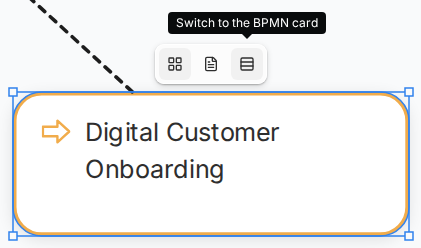
The shape becomes the BPMN view of that same Process. When the Process has no flow yet, the editor opens. When it already has one, double-click the card to edit.
The same toolbar can switch any linked shape to its document card, and back. A shape that contains other shapes can switch after those shapes are moved out.
From the diagram toolbar
Stay in Architect mode. Open the more-tools chevron. In Mermaid & BPMN, choose BPMN Diagram, next to Mermaid Diagram.

Drag on the canvas. The editor opens as soon as the shape is created.
From the Process page
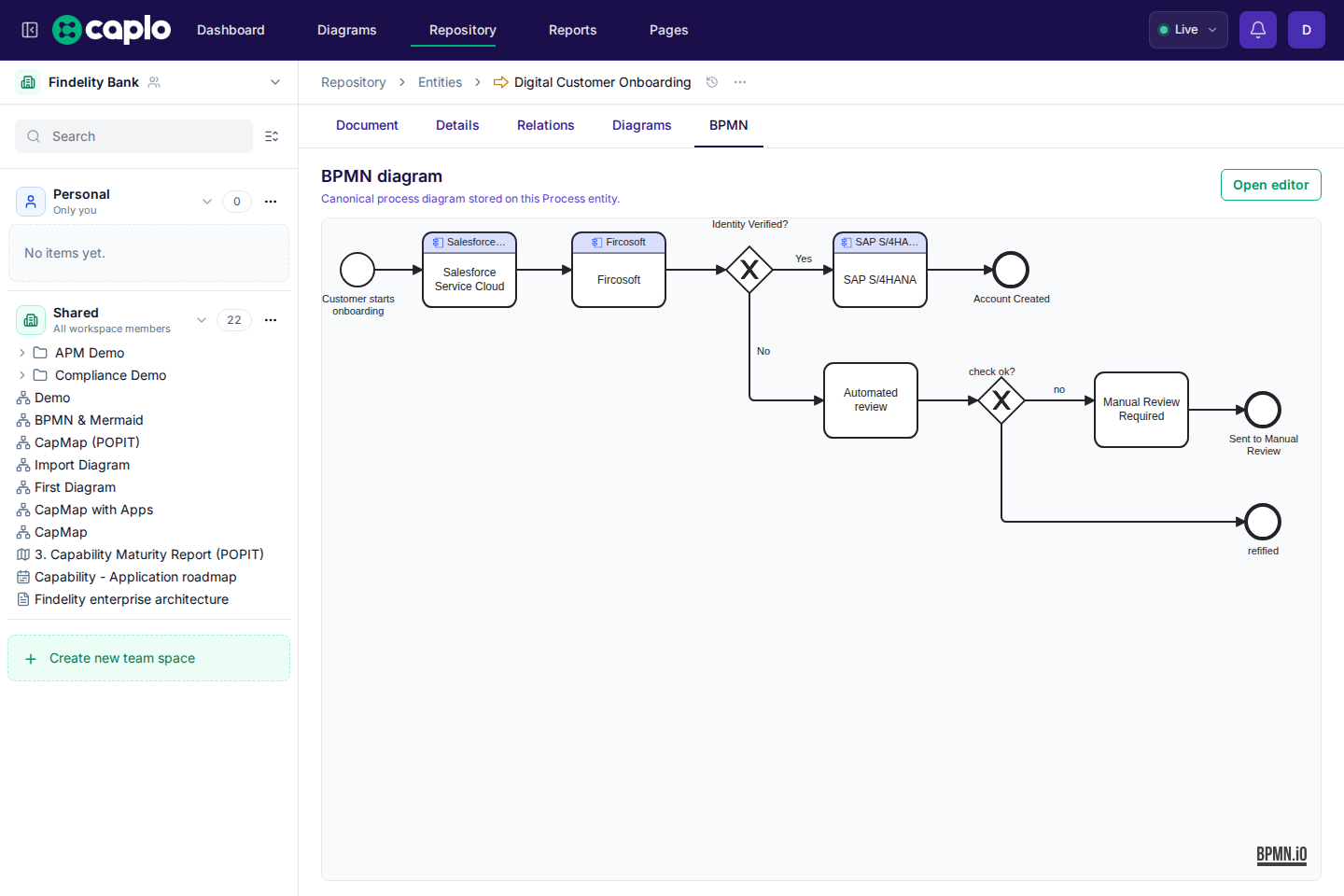
Open the Process in the repository and select BPMN. You see the flow there. Open editor opens the full editor.
From Relations
Open Repository and select the item. In the side panel, open Relations and expand BPMN diagrams. Click the process name to open its editor.
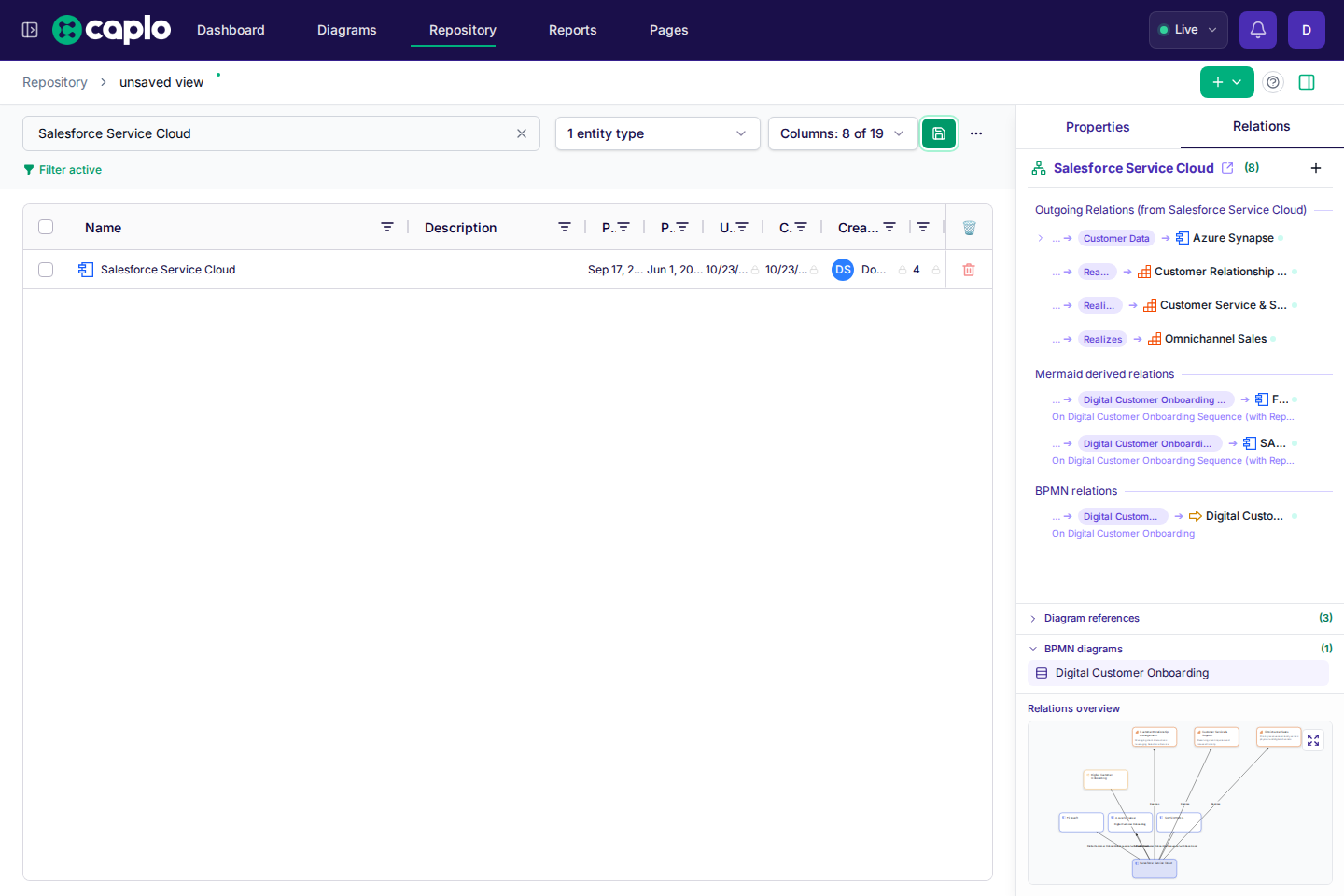
The same list is in the side panel when that item is selected on a diagram. On a BPMN connection in the list, double-click the row, or choose Go to relation source, to open the editor.
Draw the flow
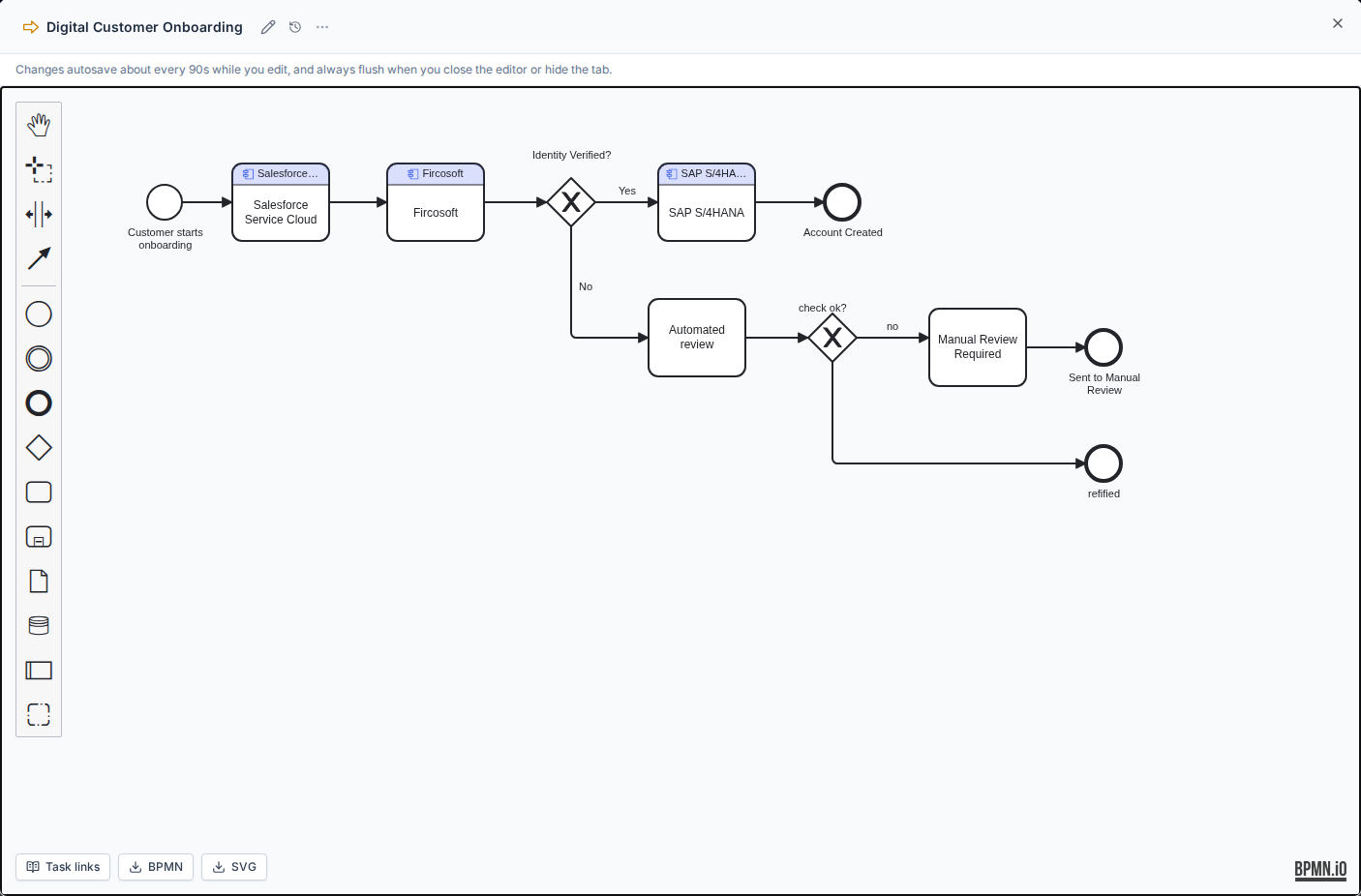
The name at the top is the Process this flow belongs to.
- Rename changes that Process name. If the name is already taken, pick another name.
- With No process linked, type a new name to create a Process, or pick an existing one. A Process that already has a BPMN flow is marked and cannot be chosen, so you do not replace its diagram.
- Changes save about every 90 seconds, and also when you close the editor or hide the tab.
- Closing an empty flow (nothing but a start event) asks whether to keep it or remove it. The starter template, which includes a sample task, is kept.
- History in the header lists earlier saves. View is a read-only preview. Restore puts that version back, including which tasks are linked to repository items. See History and snapshots.
- Delete in the ... menu removes the BPMN flow and leaves the Process in the repository. Restore it from History if you need it back.
Anyone who can see the Process can open its BPMN flow, unless a linked task, lane, or participant points at an item they cannot view. They can still see that the Process has a flow.
On the canvas, draw arrows to and from the BPMN card the same way you would with any other Process shape. It stays that Process in the repository, in reports, and when you explore relations.
Link a step to a repository item
- Select a task, lane, or pool participant.
- On the context pad, choose the link icon and search for the repository item.
- Use the unlink icon to clear the link.
Linked steps use the repository item's styling, so a task stays visually tied to the application, actor, or data object that carries it. A linked task keeps the step name in the body and shows the linked item in a band above it.
The name in the editor header is the Process for the whole flow. A link on a task, lane, or participant is the item that performs or owns that part of the flow.
See the process in Relations and reports
Each linked item gets a connection to the Process. Open Relations on the Process, or on the linked item, to see it. Reports that follow relations can use these connections too.
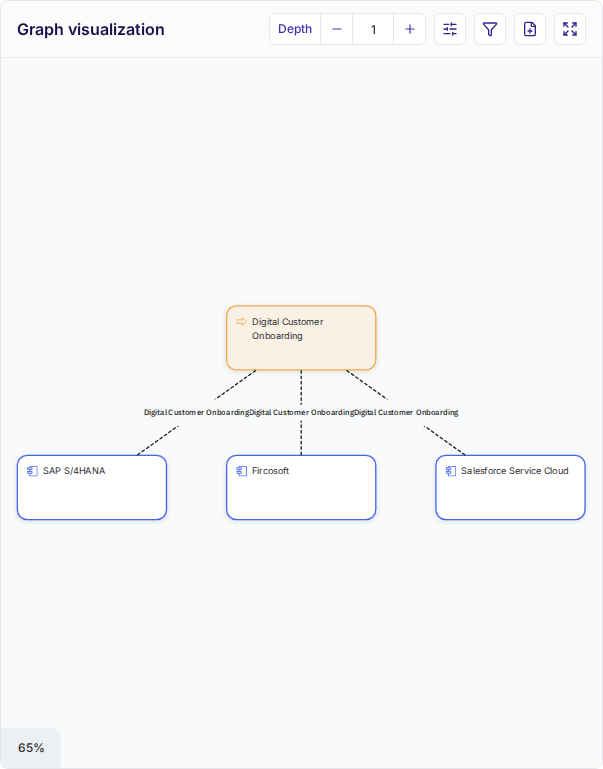
Change the link in the BPMN editor and the connection follows. When you want a connection you manage on its own, draw it with shapes and an arrow outside the BPMN flow.
Link tasks to applications, actors, or data objects. Process-to-application paths then show up in Relations and in reports, using the flow you already drew.
Bring in an existing BPMN file
- Drop a
.bpmnfile on the canvas, or - Paste BPMN XML on the canvas.
Caplo adds a BPMN shape, opens the editor, and keeps links to Caplo repository items that are already stored in the file. A file Caplo cannot read shows an error.
If your team is new to the notation, the bpmn.io documentation covers the modeling basics.
To read or update a Process flow from an integration, use MCP connections or the public REST API. Those update the Process flow. They do not add or move a shape on a diagram.
For a sequence, flowchart, or entity-relationship picture kept as text, see Mermaid diagrams.