Modeling in diagrams
Use diagrams to turn repository data into a focused visual story. The goal is not to draw everything. The goal is to answer a question clearly.
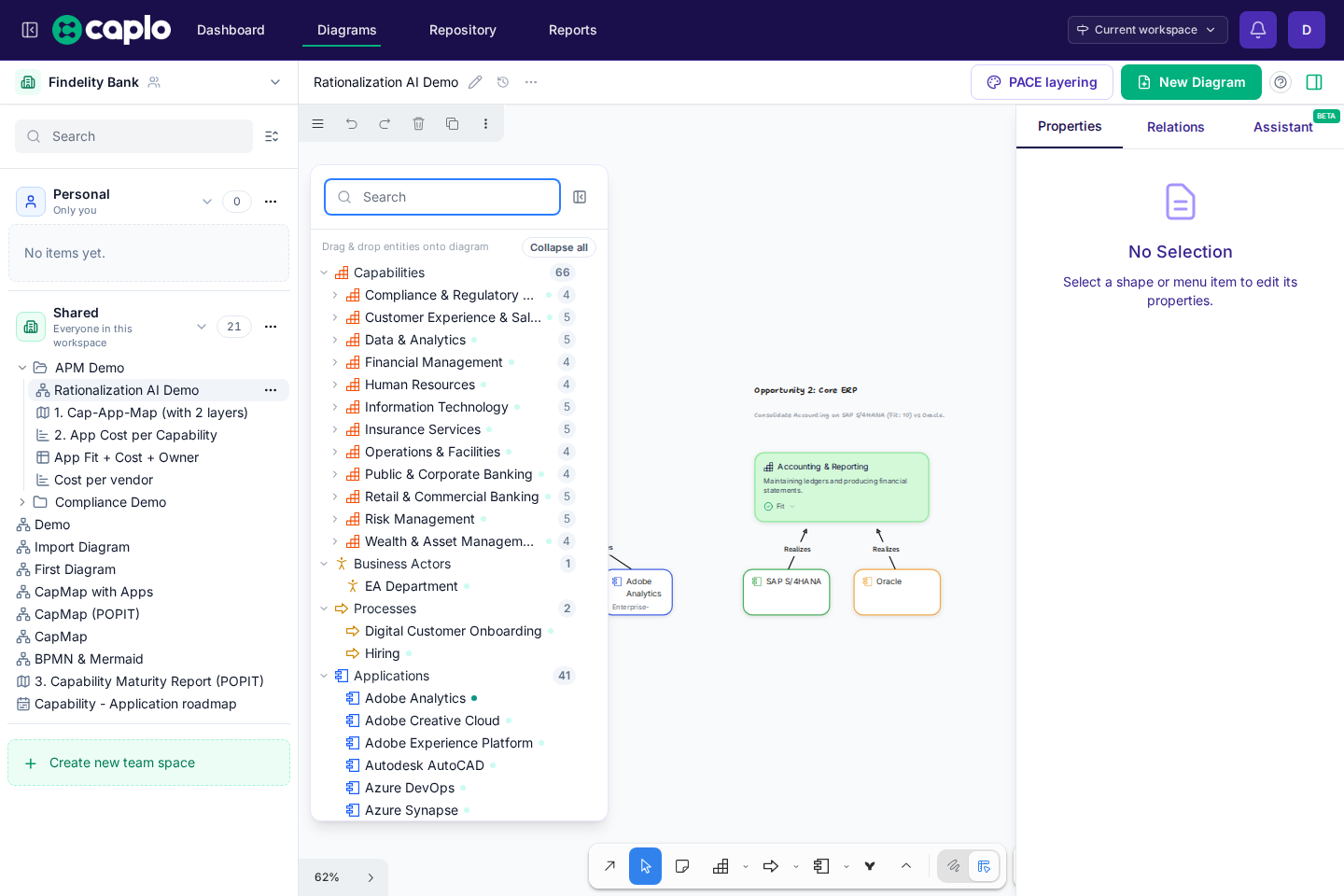
Create architecture shapes
In Architect mode, choose a shape type such as Application, Capability, Process, Data object, or Vendor. Use the type that matches the real-world object you want to model.
When the object should be reused, link it to a repository entity. If the entity already exists, reuse it. If not, create it from the diagram or add it later from the Repository.
Available shape types depend on your workspace settings. For more on enabled element types, see Meta model.
Process shapes and BPMN shapes
Processes are special in Caplo because one Process entity can be shown in two visual representations:
- a classic Process shape for normal architecture modeling
- a BPMN shape for detailed process flow modeling
Both representations point to the same linked Process entity.
That means a linked BPMN shape behaves like a normal Process shape for day-to-day modeling:
- you can draw arrows to and from it
- Caplo can create or reuse normal relations for it
- it stays the same Process in the repository, reports, and graph exploration
Use the classic Process shape when you want a simple architecture node. Use the BPMN shape when you want to show the process flow itself. You can switch between the two representations from the contextual toolbar.
Edit names and properties
When you want to refine a shape directly on the canvas, edit its name inline. Double-clicking the label is the fastest way to do that for normal architecture shapes.
For full detail, select the shape or relation and use the right panel to edit properties, inspect related items, or open the linked entity detail page.
Link existing entities
Drag entities from the Repository overlay onto the canvas to reuse repository data. This is the safest way to avoid duplicate applications, capabilities, or processes.
If you type a name that closely matches an existing repository item, Caplo may suggest a match so you can connect the drawing to the right entity.
Create and reuse relations
Use arrows to show relationships between linked entities. When Caplo recognizes the connection as a reusable relation, it can create or reuse that shared relation for the workspace.
While you drag an arrow endpoint (or a line vertex), Caplo gently snaps toward horizontal, vertical, and 45° diagonals when you are within about 5°. Hold Shift for the finer 15° snap if you need it.
Use relation names sparingly. A clear relation type is often enough, while extra names are useful for flows or connections that need a specific label.
Parent-child and diagram-only grouping
Nesting shapes has meaning in Caplo. It is not only a layout trick.
- Same-type nesting creates or reuses a Parent-child relation.
- Some different-type nesting combinations can infer another reusable relation, such as Realizes or Accessed by.
- If the grouping is only visual, keep it diagram-only instead of using nesting to imply reusable structure.
The simplest way to keep grouping visual is to use Draw mode boxes, labels, and annotations when you only want framing or workshop structure.
Use nesting when the hierarchy or semantic relationship is intentional. If you only want layout, use a visual grouping technique instead of teaching the repository something untrue.
Approve AI-generated items
This mainly matters when the AI agent creates shapes that refer to entities that do not exist in the Repository yet.
Those shapes can appear on the diagram as linked but unapproved items, so you can review them in context before they become part of the shared model.
When you approve them from the diagram, those entities, and any linked reusable relations that were created with them, become part of the Repository.
Repository-created items are approved immediately, so this is not usually part of the normal manual modeling flow.
Auto-layout and containers
Some diagram structures can arrange themselves as you nest or group items. Auto-layout helps keep container-style diagrams readable, especially for landscapes and capability maps.
If a diagram needs manual storytelling layout, keep it simple and use spacing, grouping, and labels to guide the reader.
Select one or more shapes and use the contextual toolbar above the selection to turn auto-layout on or off for those containers.
Capability maturity on the canvas
Capability shapes can show a POPIT maturity assessment (People, Process, Technology, Information) and soft fitness coloring once all four dimensions are set. Caplo uses the same pastel fitness colors as landscape reports.
Select one or more Capability shapes and use the contextual toolbar to show or hide that maturity display. If your selection also includes other element types, Caplo still shows the control and applies it only to the selected Capabilities.
When diagram PACE layering is on (As-is / to-be or a static field), those colors replace fitness coloring so the chosen reading stays clear. Clear PACE layering to see capability fitness again. For how As-is / to-be, phase dates, and empty defaults work, see As-is / to-be.