Embedded diagrams
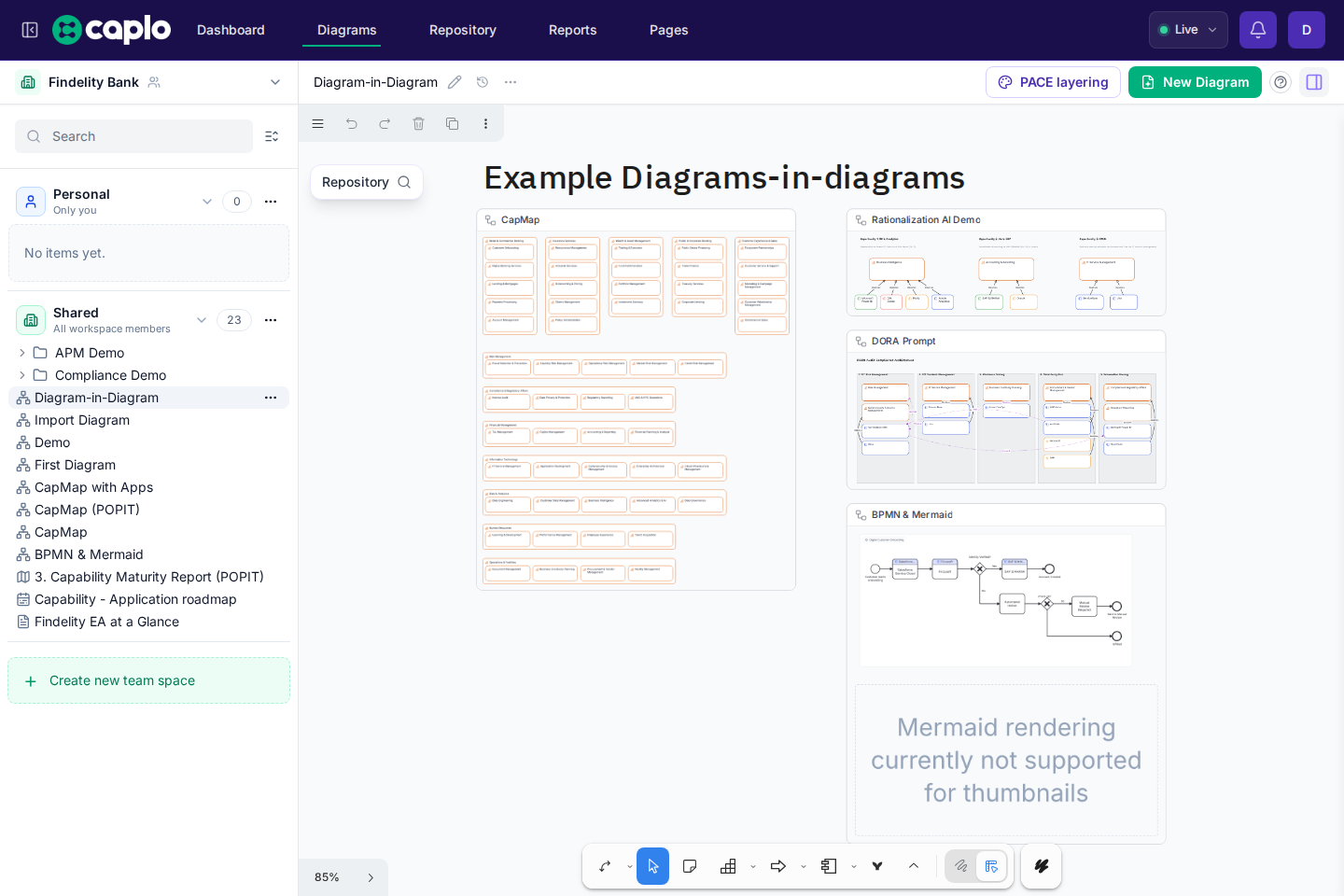
An embedded diagram is a card on the canvas that shows another diagram. Use it to build an overview that points to the detail behind it, for example a landscape diagram with cards for the capability map and the application view it summarizes.
The card shows the diagram's name and a picture of its canvas. The picture follows that diagram: after someone saves a change there, the card shows it the next time it loads. Double-click the card to open the diagram.
Add a diagram
- Open the diagram you want to add the card to.
- Find the diagram you want to show in the Overview panel.
- Drag it onto the canvas.
The card appears where you drop it, sized to the shape of that diagram. Drag a corner to resize it; the picture keeps its proportions. Undo removes the card in one step.
Only diagrams can be added this way. While you drag a report, repository view, page or folder over the canvas, the pointer shows that it cannot be dropped and a note says so.
You can add cards only to a canvas you can edit. Caplo refuses the drop, and tells you why, when:
- You cannot edit this diagram.
- You drop the diagram onto itself. A diagram cannot contain itself.
- You drop a Personal diagram onto a Shared one. Other people would not be able to see it.
Open the diagram
Hover over the card and select Open in its name bar, or double-click the card. In a draft, it opens in the same draft. This works with the select tool and with the hand tool.
Cards also open from places where you cannot edit the canvas:
- In a Confluence embed, a double-click opens the diagram in Caplo, the same as Open in Caplo.
- On a draft's Conflicts tab, a double-click opens the diagram in a new tab: the live diagram from Current live version, and the draft's version from Draft.
What the card shows
The picture shows the embedded diagram in the same context as the canvas around it:
- Live workspace: the diagram as it is now.
- Draft: the draft's version when the draft changed that diagram, otherwise the live one.
- Workspace snapshot: the diagram as it was at that snapshot.
Instead of a picture, the card can show a message:
- No preview available: the diagram has never been saved, or it contains repository items you are not allowed to see. You see its name, but not its content.
- Diagram unavailable: you cannot see the diagram, or in a snapshot it did not exist yet or was already deleted.
A card whose diagram was deleted keeps the diagram's name, marked (deleted), with a red dashed border, like a deleted repository item on a diagram. Restore the diagram from Latest actions on the Dashboard to bring the picture back.
The picture is a preview, not an exact copy. Mermaid diagrams and diagram cards inside the embedded diagram show a short note instead of their content, and images show as grey boxes. Open the diagram for the full canvas.